Scratch the Repetition. Automate.
I feel like I spend a lot of time typing the same phrases over and over again. For instance, when students send me an assignment via email, I send them back a ‘got it’ message. When I send them their graded assignment, I write a ‘your assignment is attached’ message. Isn’t there a keyboard shortcut that will do that for me?
With PhraseExpress, there is.
My preference in this blog goes to free programs and services, and this one technically is. However, if the program thinks you’re a business (by identifying certain business-like words) it will start to give you an annoying little popup prompting you to purchase it. The popups bugged me so much that I uninstalled it, but I missed the features so much, I re-installed it and sent the company the money. A decision I have not regretted.
PhraseExpress works wherever you type text – in email, in Word, in Excel, in your browser’s search box.
What it does.
- It automatically enters text. When I type #g followed by a space, it automatically replaces ‘#g’ with ‘Got it!,’ the message I send to my students when I receive their emailed assignments. When I send back their graded assignments, I just type #gr followed by a space and it replaces it with ‘Your graded assignment is attached! – Sue.’This is fully customizable. You can decide what keystroke combination will generate the phrase you want. For instance, I could choose $student followed by a ‘Tab’ to generate a phrase. There doesn’t appear to be a limit on the phrase size. You can use it to produce several lines with just a few keystrokes.
- It automatically runs programs. For me, #word automatically runs MS Word, #xl opens Excel, and #calc opens the calculator. Again, you choose the keystroke combination that you want. Perhaps you have your browser open and you want to open PowerPoint, and you designated #ppt as the magic keystroke combination. In your browser’s address bar, type #ppt and PowerPoint will automatically run.
-
It automatically opens folders and files. With #md I open my “my documents” folder from anywhere I can type. I can also ask it to open a particular file — #grades opens my grade spreadsheet in Excel.
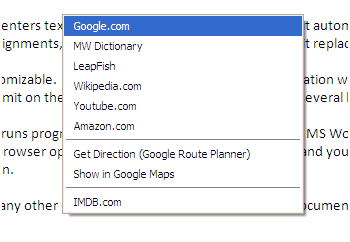
- It automatically does web searches. Highlighting any text anywhere and hitting CTRL-F8 generates this ‘search’ popup. If I select ‘Google.com’ then the highlighted text (buried under the popup) will be run in a Google search. The search services listed are customized; you pick what websites you want as options.
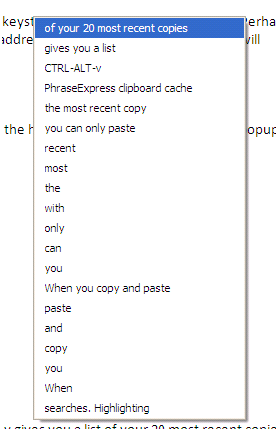
5. It automatically keeps a clipboard cache. Usually when you copy and paste, you can only paste the most recent copy. With the PhraseExpress clipboard cache, CTRL-ALT-v gives you a list of your 20 most recent copies. Just click the one you want. If 20 is too many for you, you can change the PhraseExpress settings to give you less.
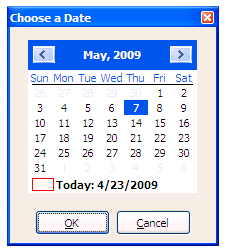
6. It automatically opens a calendar. Select a date, and the date is entered as text. For instance, typing #cal gives me this popup. When I click on a date, the date is entered where I was typing. In the PhraseExpress settings, you determine the format for the date. I have mine set so that if I selected the date highlighted below, “5/7/2009” would be entered where I had typed #cal and the popup calendar would disappear. If I just wanted today’s date entered, #date would do that. For that matter, if I wanted to enter the current time, #time or #now would paste the current time.
7. It automatically opens websites. Let’s say I’m typing along in Word, like I’m doing now, and I wonder, “What’s new?” I can type cnn, and PhraseExpress will open the CNN website in my default web browser.
8. This is not a comprehensive list. Visit their website for more.
One application
With all of the examples above, you get a sense of what PhraseExpress can do. I want to give you one more example that’s a little fancier that really shows its power.
Let’s say I wanted to send reminders out to my students about due dates for upcoming assignments. [Actually, this isn’t something I would do, but I can see where someone would.] By typing !due PhraseExpress asks me to pick a date, and then it generates an email in Outlook with my students’ email addresses entered, with “Psych 100: Next assignment due” in the subject line, and some appropriate text and due date in the body of the message. All I have to do is hit ‘send.’ The next time I type !due, I can send the same message to the same students but have a different date.
To do this, inside PhraseExpress, I click “New Phrase” then “Add Macro” then “Automation” and finally “Create an email.”
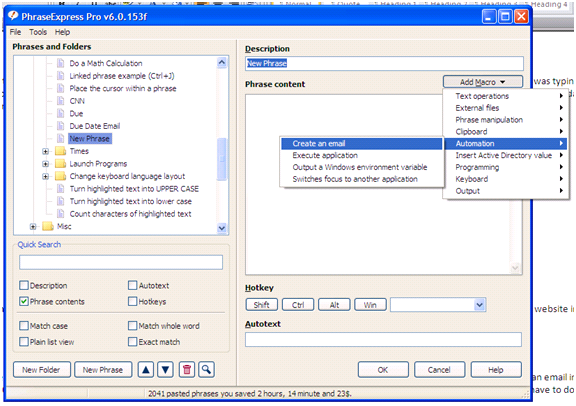
That generates this popup:
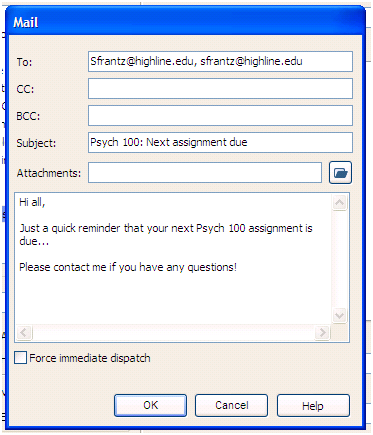
In the To: box I’d put my student email addresses, of course. (Actually, I’d put my email address in the “to” box and put my students’ email addresses in the “bcc” box.)
When I click “OK,” in the “phrase content” space, I get this scary looking bit of code:
{#mail -to Sfrantz@highline.edu, sfrantz@highline.edu -subject Psych 100: Next assignment due -body Hi all,
Just a quick reminder that your next Psych 100 assignment is due…
Please contact me if you have any questions!}
I want to replace the ‘…’ after ‘due’ with a date I pick. So I delete the ‘…’ and then click “Add Macro” then “Phrase manipulation” then “Insert a phrase within another Phrase.”
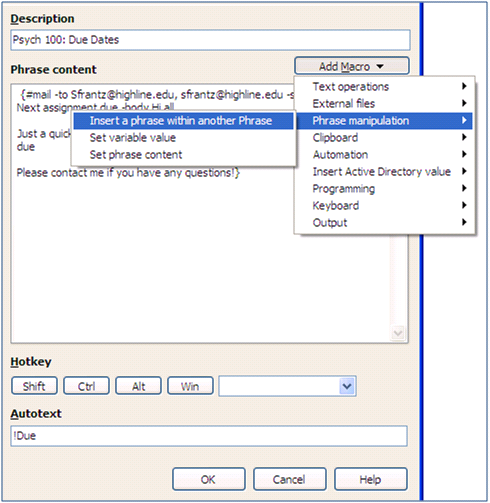
Since I already have #cal opening a calendar for me, on the next screen I type ‘#cal’ and that is entered right after ‘due’ giving me this code:
{#mail -to Sfrantz@highline.edu, sfrantz@highline.edu -subject Psych 100: Next assignment due -body Hi all,
Just a quick reminder that your next Psych 100 assignment is
due {#insert #cal}
Please contact me if you have any questions!}
After clicking “OK” my shortcut has been saved and is ready for use!
Since I’ve designated !due as my shortcut, when I type that, the calendar pops up, and I choose a date. In this example I chose May 7, 2009. And then Outlook opens this new message:
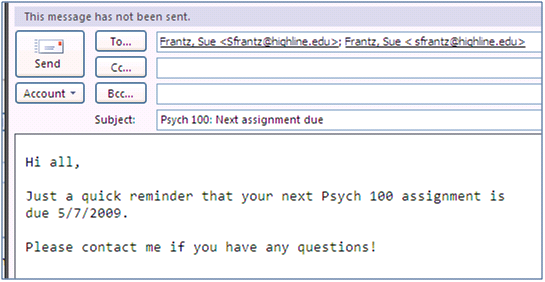
To recap, to send a due date reminder to my students, I type “!due” wherever I can type, click a date, and hit “send.” Done.
Next term, all I have to do is delete my student email addresses and enter the new ones.
Not perfect
As powerful as this program is, it’s not perfect. For instance, it works as a spellchecker, but its spellchecking isn’t as powerful as MS Word’s. It will tell me that I’ve misspelled ‘the’ when I type ‘teh,’ but I can misspell all sorts of words, and it doesn’t blink: spull, blunk, wirk.
It has an ‘autotext’ feature that I turned off because it got on my nerves. When PhraseExpress detects that you’ve typed the same phrase repeatedly, it will offer you that phrase when you type the first few words of it. The problem for me was the few words it was picking up on were the first few words I used in a lot of phrases (so I discovered). What it would offer wasn’t usually what I wanted.
When you type in your keyboard shortcut, like #cal, the PhraseExpress default is to ask you to hit “tab to execute.” I found always going to ‘tab’ bothersome, so I changed the default to “spacebar to execute.” That has worked better for me, except it’s tougher to get around if I don’t want to ‘execute.’ Under most circumstances, I do want the calendar to popup when I type “#cal” otherwise why would I type such a combination? But writing this blog was cumbersome since every time I would type a particular combination followed by the spacebar, PhraseExpress would execute the command. How dare it do what it’s supposed to do. (To get a command phrase like #cal to not run the calendar, I typed #cals in my sentence, then went back and deleted the ‘s.’)
For reasons I haven’t been able to discern, sometimes PhraseExpress just executes the command without asking if you that’s what you want to do. Generally, I’d prefer that it did it without asking, but I’d at least like to know why it sometimes asks and sometimes doesn’t. It may be that the program is just a little buggy. I don’t know.
Having said that, what PhraseExpress gives me makes these issues very minor ones.
In summary…
Anything you do repeatedly on your computer (type phrases, open programs, open files or folders, do web searches), you can ask PhraseExpress to do for you.